Navigating the side panel
The side panel is your quick-launch hub in Storytell. You can jump into a chat, organize your files, or navigate projects, all from one place. Here’s what each section does and what to expect as we keep leveling it up.
Written By Patrick Intervalo
Last updated About 1 month ago
Overview
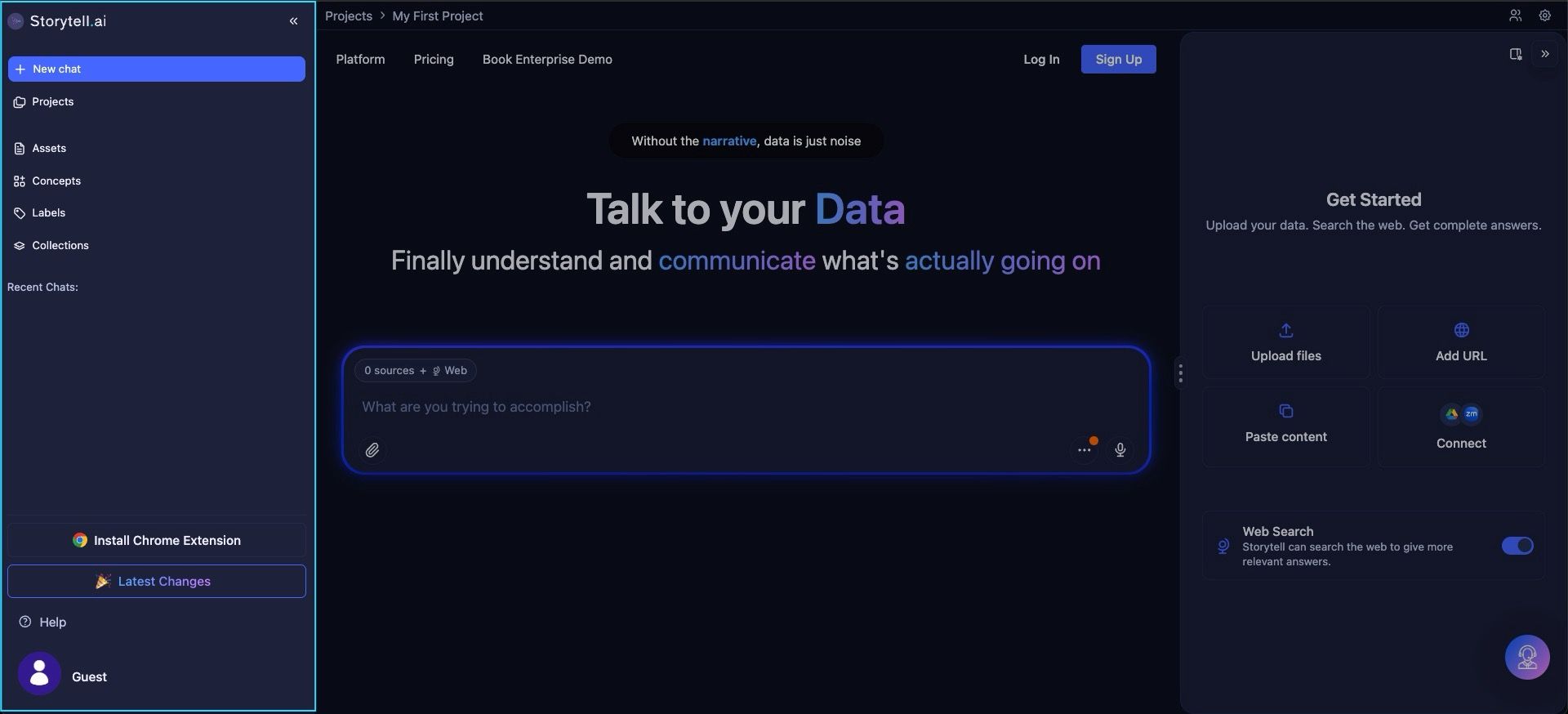
Storytell’s interface includes a compact sidebar on the far left with icons representing each main area of your workspace. This sidebar is always visible and gives you instant access to the tools you use most.
You can hover over or click any icon to expand the side panel and view the full workspace for that section.
Layout at a glance
Mini sidebar (icons only): Always visible for fast navigation
Expanded panel: Opens when you click on the expand button, showing the panel for the section
Top navigation bar: Links to Storytell’s main site (Platform, Pricing, and more)
Each section of the side panel is described below, in the order you’ll see them.
New Chat
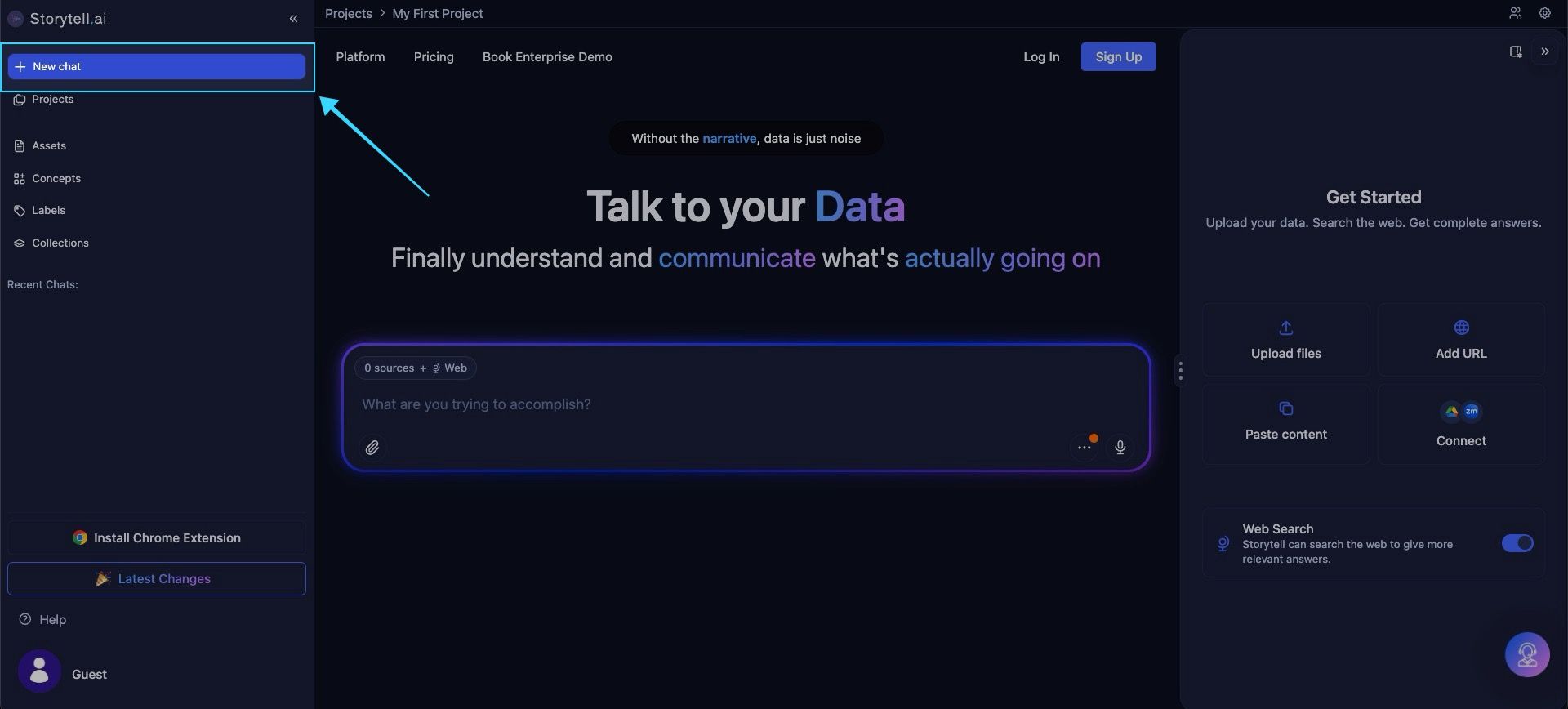
New Chat is the starting point for every conversation in Storytell.
Click New Chat to open a blank chat where you can ask questions, run analyses, explore ideas, or work with your knowledge. Every interaction with Storytell begins here, using the context of your current Project, Assets, Concepts, Collections, and preferences.
Each chat maintains its own thread, so you can build on responses, refine prompts, and return to your work later without losing context.
Tip: Press ⌘ + K (or Ctrl + K on Windows) to open the chat bar from anywhere in the app and start a new chat instantly.
Projects
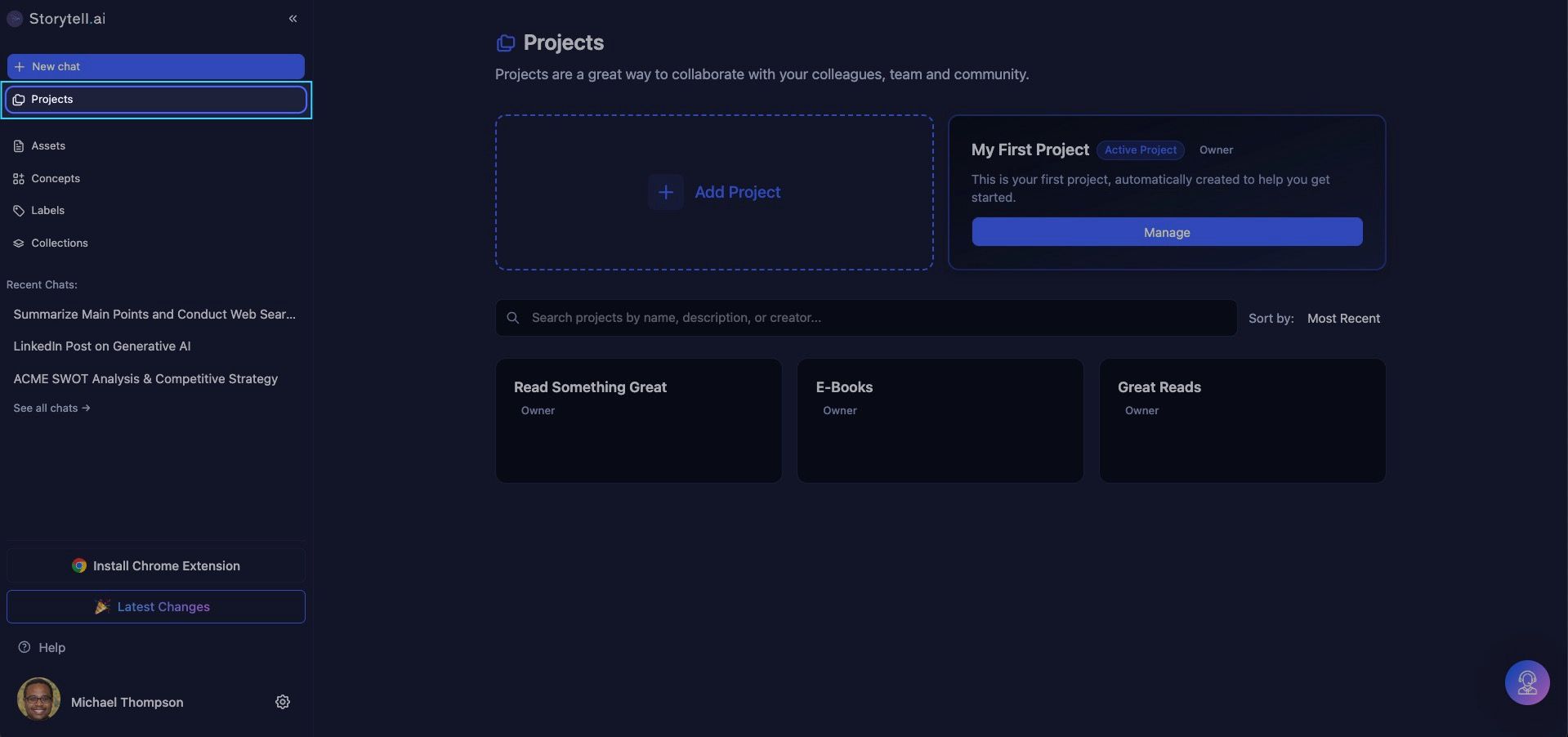
Projects let you organize your work into separate, focused spaces — each with its own chats, assets, and knowledge.
Click Projects at the top of the sidebar to open the Projects panel, where you can:
View all Projects you’ve created or are a part of
Switch between Projects — your workspace updates automatically
Manage Projects — edit names, descriptions, and invites
Create new Projects — define roles, add teammates, and assign access levels
Projects keep your work organized and contextually isolated, so you can focus without mixing client, research, or internal initiatives.
Learn more about Projects → Projects Overview
Assets
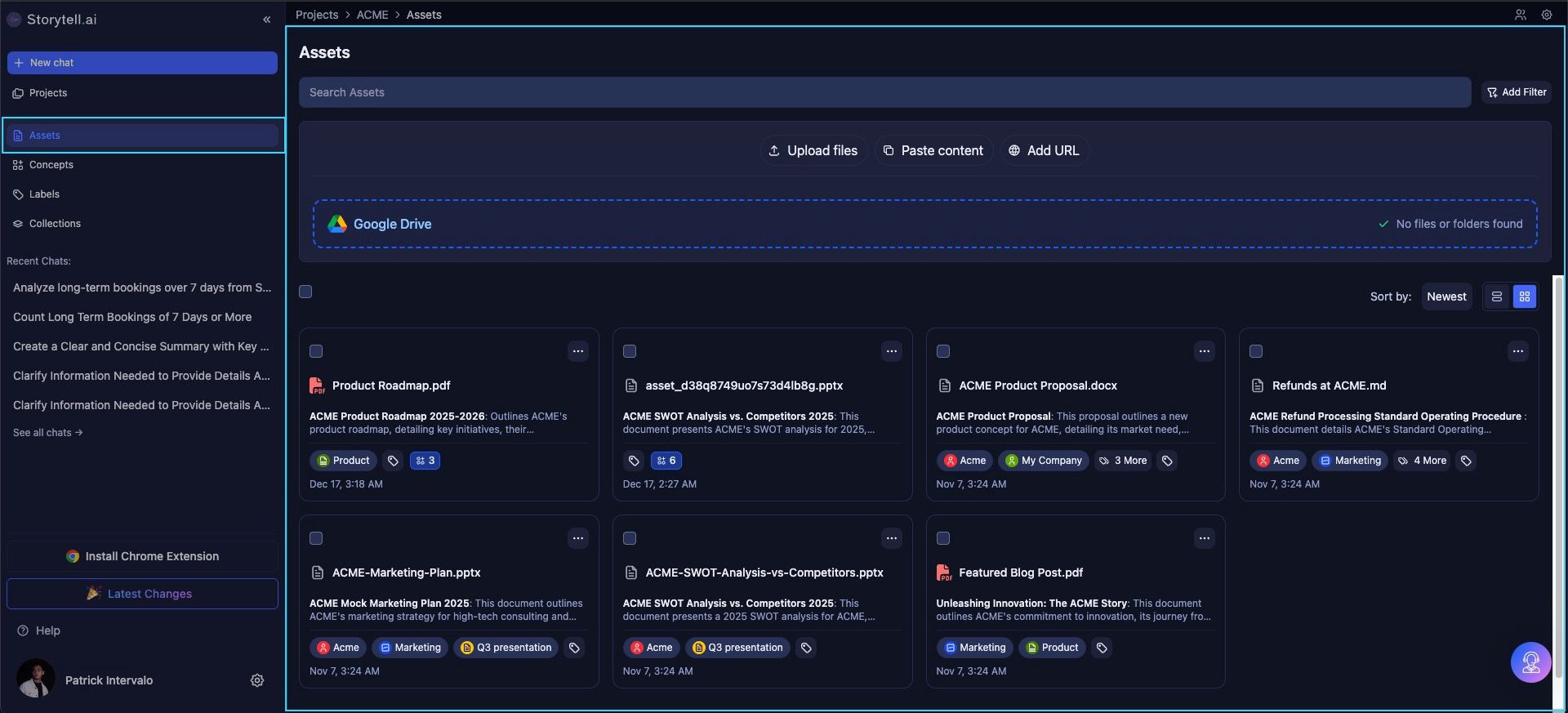
Assets is where all your uploaded files live.
This tab gives you a dedicated space to upload, browse, and manage the source materials that power Storytell’s responses.
From here, you can:
Upload new files to Storytell
View and manage all previously uploaded assets
Monitor upload and processing status
Delete or bulk delete files
Revisit files used across chats, Concepts, and Collections
Think of Assets as your raw material layer — the foundation Storytell uses to generate knowledge and insights.
Learn more → View Asset details
Concepts
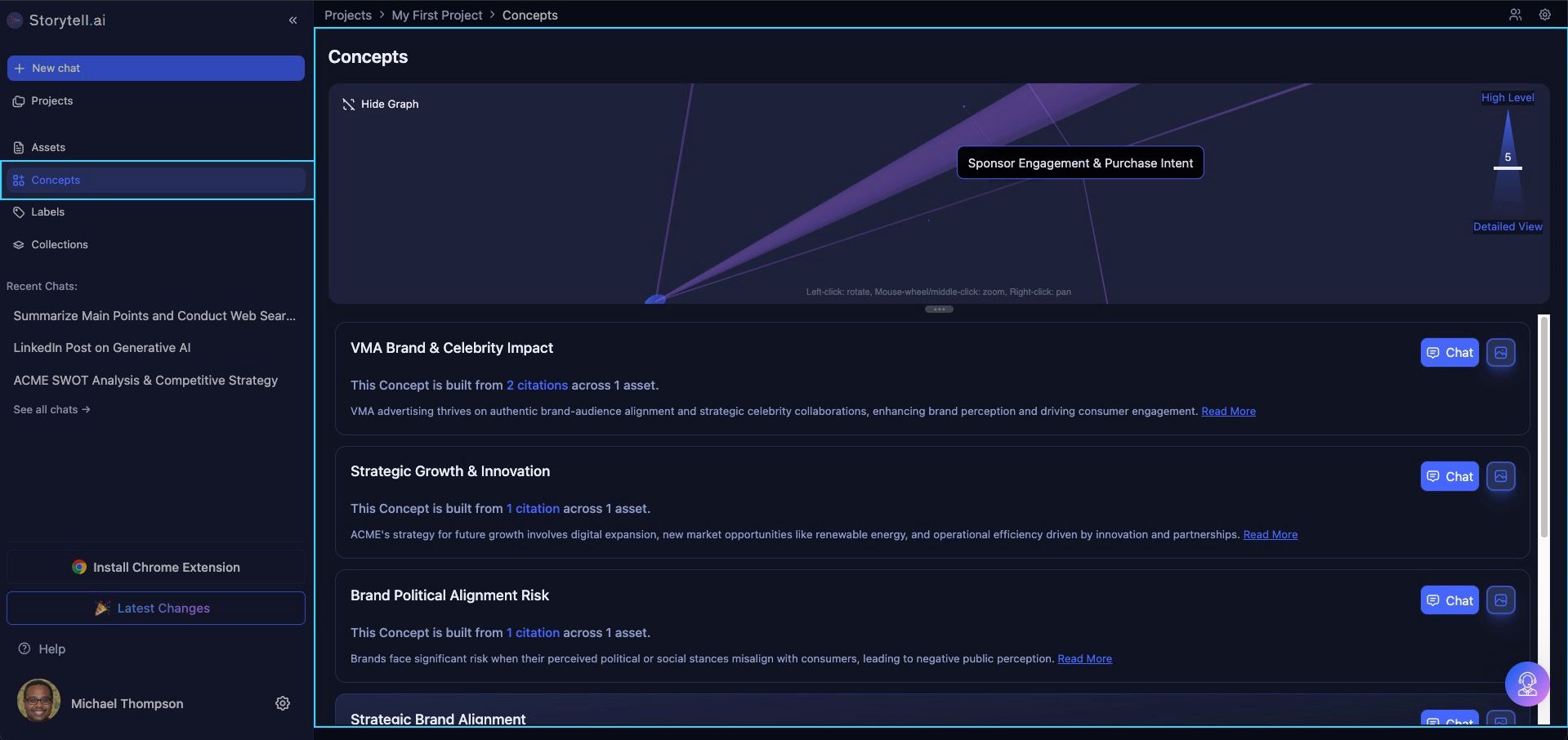
Concepts help you move beyond files and focus on meaning.
Concepts are Storytell’s automatically extracted knowledge entities. They identify and organize the key ideas, themes, people, products, and signals hidden across your uploaded files.
In the Concepts tab, you can:
View Concepts generated from your files
Explore Concepts in different views
See which files contributed to each Concept
Jump back to source material for deeper context
Concepts give you a higher-level map of your knowledge, making it easier to spot patterns and connect insights across multiple assets.
Learn more → Concepts overview
Labels
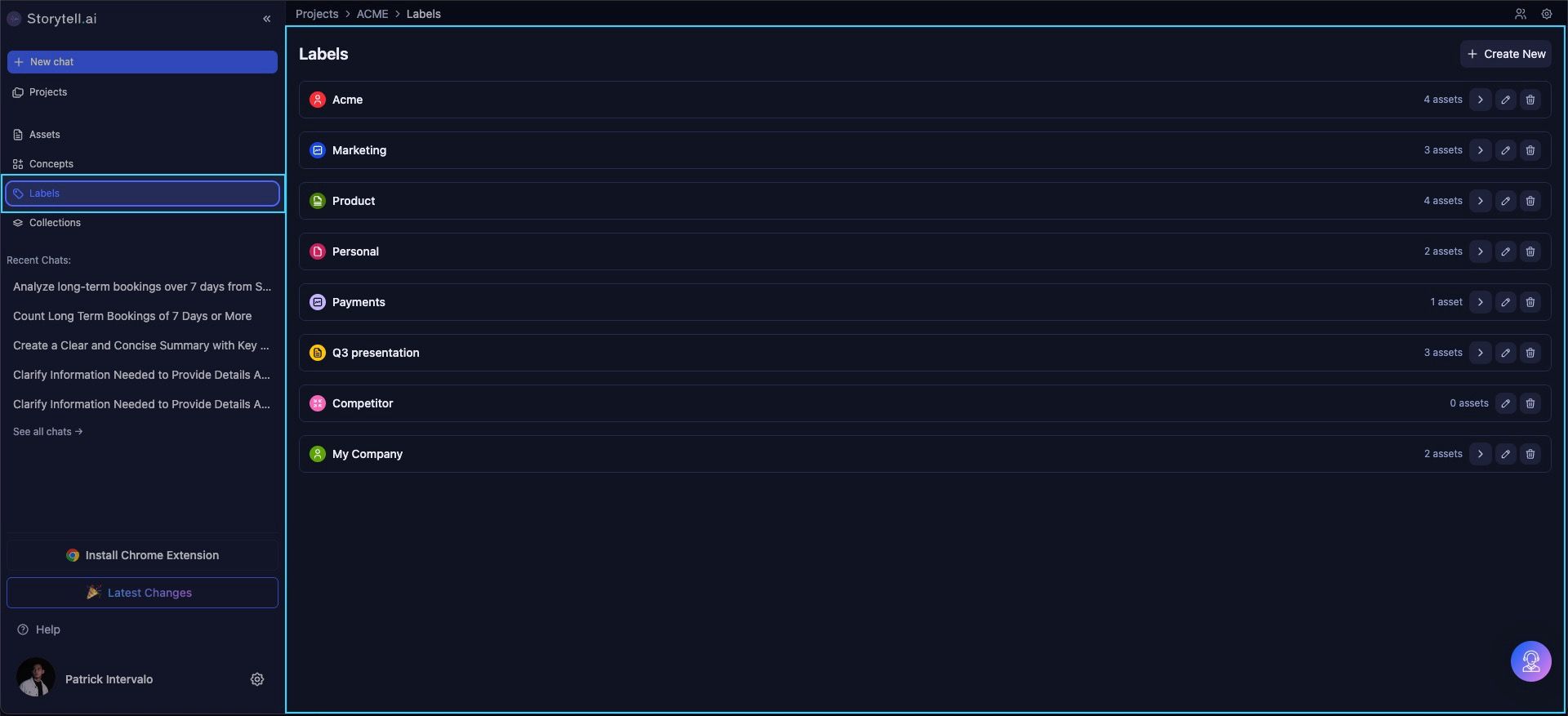
Labels help you organize and retrieve assets your way.
Labels are customizable tags that let you categorize files based on your workflow — that’s by project phase, client, topic, or status.
From the Labels tab, you can:
Create and manage Labels
View all files tagged with a specific Label
Update or clean up existing Labels
Use Labels to filter and organize Assets more efficiently
Labels make it easy to slice your knowledge and return to exactly what you need, when you need it.
Learn more → Labels overview
Collections
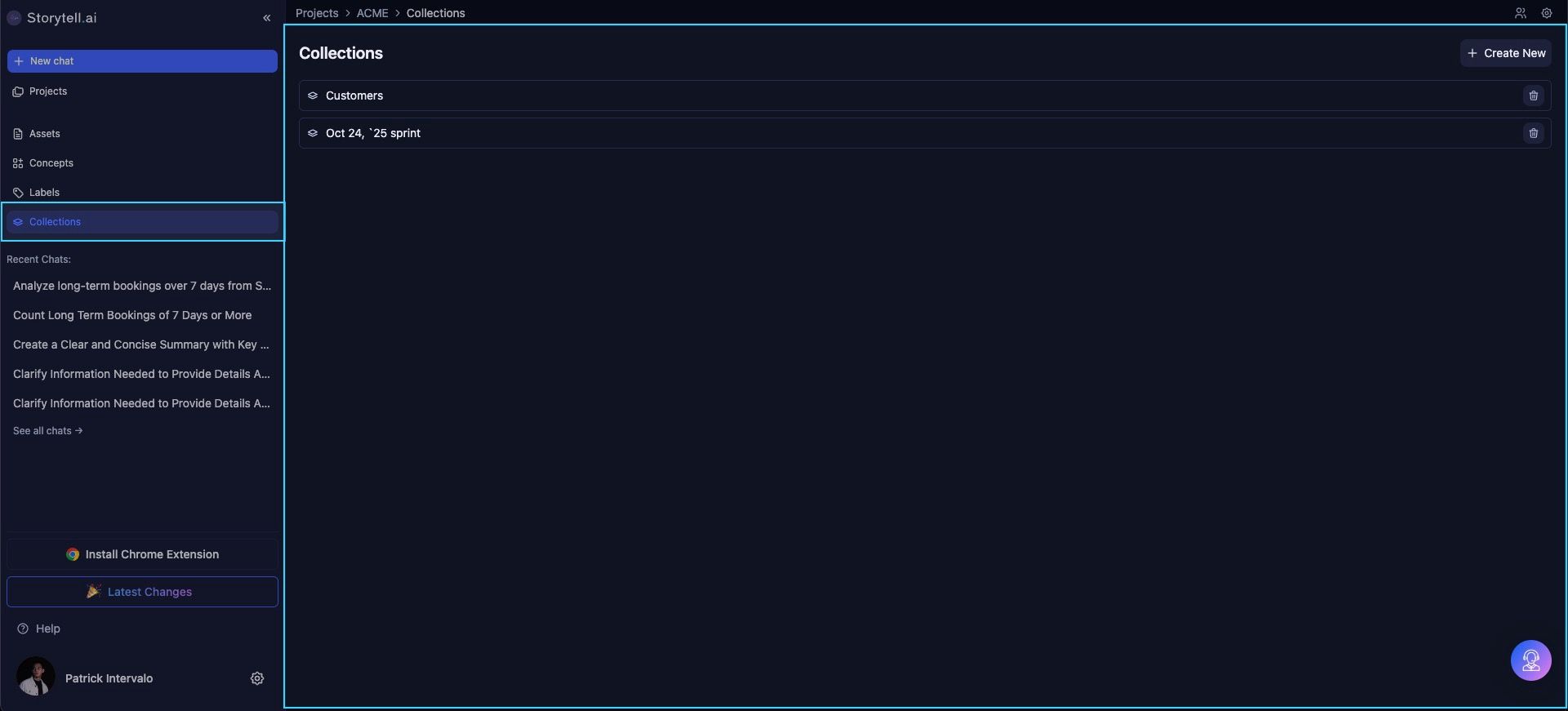
Collections let you define focused subsets of your knowledge.
A Collection creates a “fence” around selected assets so you can work with a specific scope instead of defaulting to All Knowledge every time.
In the Collections tab, you can:
View all Collections you’ve created
Create new Collections
Edit or delete existing Collections
Reuse Collections across chats and workflows
Using Collections helps reduce noise, improve answer quality, and maintain consistent context across repeated analyses.
Learn more → Data Collections: Overview
Recent Chats

The Recent Chats tabs shows your past chat history with Storytell. You can scroll back to revisit earlier prompts, results, and follow-up questions. This makes it easy to pick up where you left off, reference a past answer, or reuse a great prompt.
Chats are listed by most recent activity, so the ones you’ve worked on most recently appear at the top. While chat history isn’t searchable yet, it gives you a quick way to retrace your steps and stay in flow.
Install Storytell Chrome Extension
Install the Storytell Chrome Extension to bring Storytell into your everyday browsing and research workflows.
With the extension, you can quickly send content from the web into Storytell, capture sources, and build your knowledge base without switching tabs.
Learn more → Take Storytell with you, with our Chrome Extension
See Latest Changes
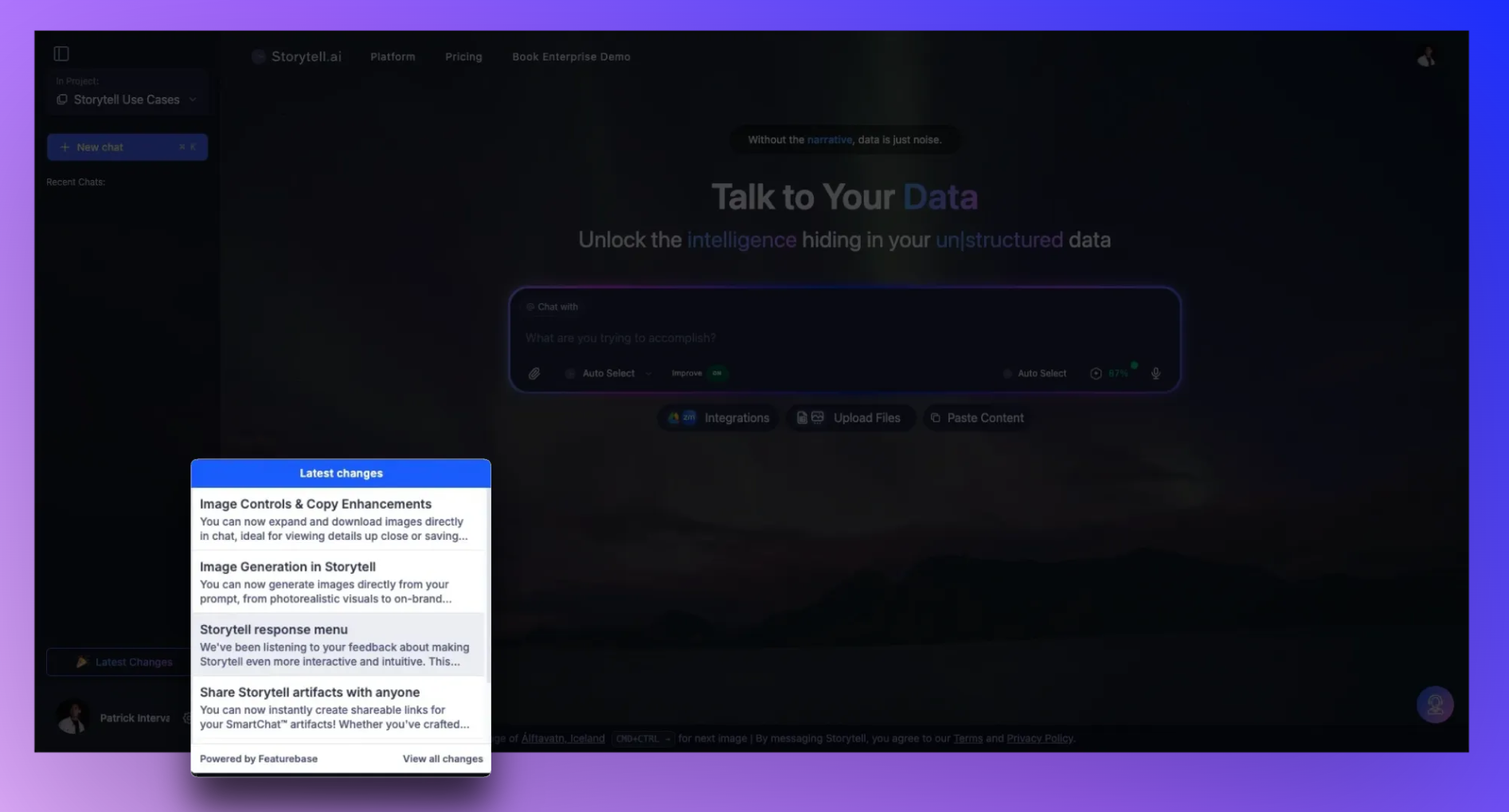
Keep up with what’s new in Storytell.
Click See Latest Changes from the side panel to open the changelog — a running feed of recent product updates, feature launches, and bug fixes.
From here, you can:
Catch up on the newest Storytell capabilities
Review enhancements and improvements
Access links to related documentation for each update
Your Profile & Settings

This menu is where you manage your Storytell account and customize your experience.
From here, you can:
View account details — Check the name and email associated with your Storytell login
Manage your subscription — Access billing and plan information
Customize your Storytell experience — Adjust preferences like background appearance, language, and other personalization settings
Sign out — Log out of your account securely
Your settings help tailor Storytell to how you work, so the interface, language, and overall experience feel comfortable and familiar.